Before you start
PromptMaster Pro works in Google Chrome, Microsoft Edge and Mozilla Firefox. Install it from the Chrome Web Store, Microsoft Edge Add-ons or Firefox Add-ons.
Opera and Brave users can install it from the Chrome Web Store. Install it in one click, no developer mode or manual setup needed.
Install the extension
Search for PromptMaster Pro on the Chrome Web Store, or just click "Add to Chrome" on this site, then confirm the install.
- After install, click the extensions icon in your browser's toolbar → pin PromptMaster Pro for quick access.
The first time you open it, a welcome screen greets you with two options: Start for Free: jump straight in on the Free plan, no signup, or Already have a plan? Activate, which takes you straight to the email field in Step 3 below. No account creation, no password, just your email.
Open the extension popup
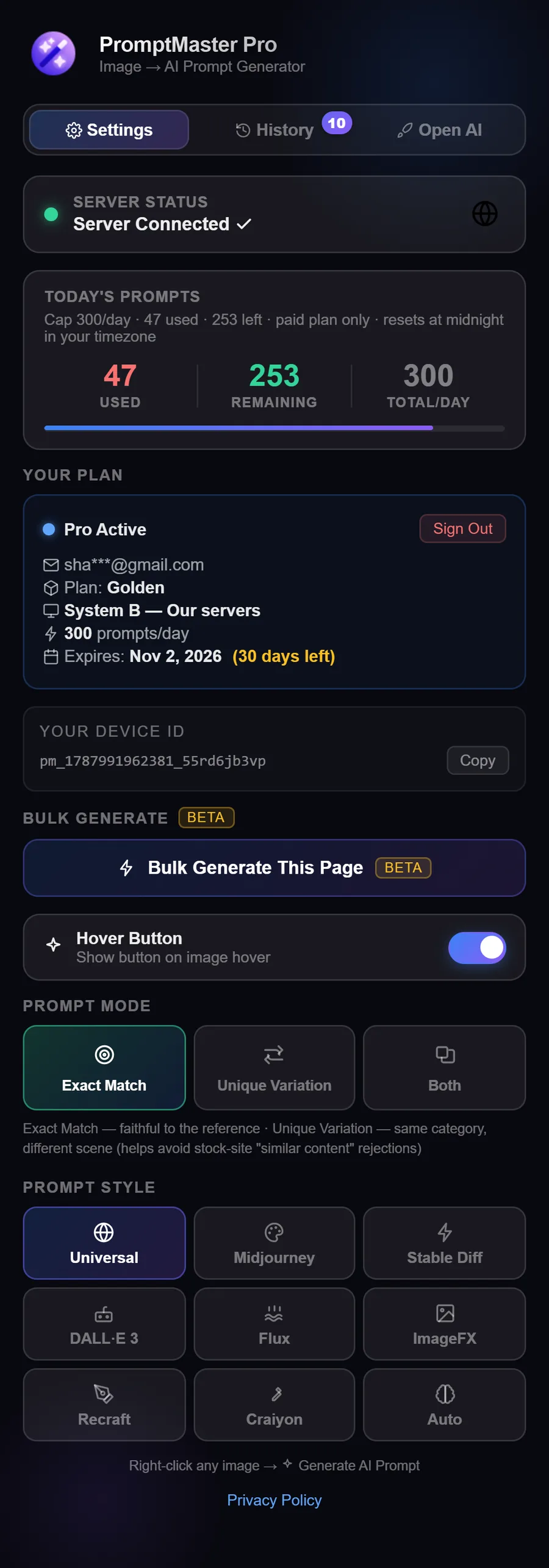
Click the PromptMaster Pro icon in the toolbar. The Settings tab opens by default and shows:
- Your daily usage (used / remaining / total) and current plan (Free, Silver, or Golden).
- An Activate Your Plan card if you haven't signed in yet, or a Your Plan card with your email, plan, and expiry once you have.
- Your Groq / Gemini API key (Groq recommended, 5× faster), only shown on Silver, since Silver uses your own key.
- Your Device ID, a Prompt Style picker (Universal, Midjourney, Stable Diffusion, ChatGPT Images, Flux, Nano Banana, Recraft, Craiyon, or Auto), and a Hover Button toggle.
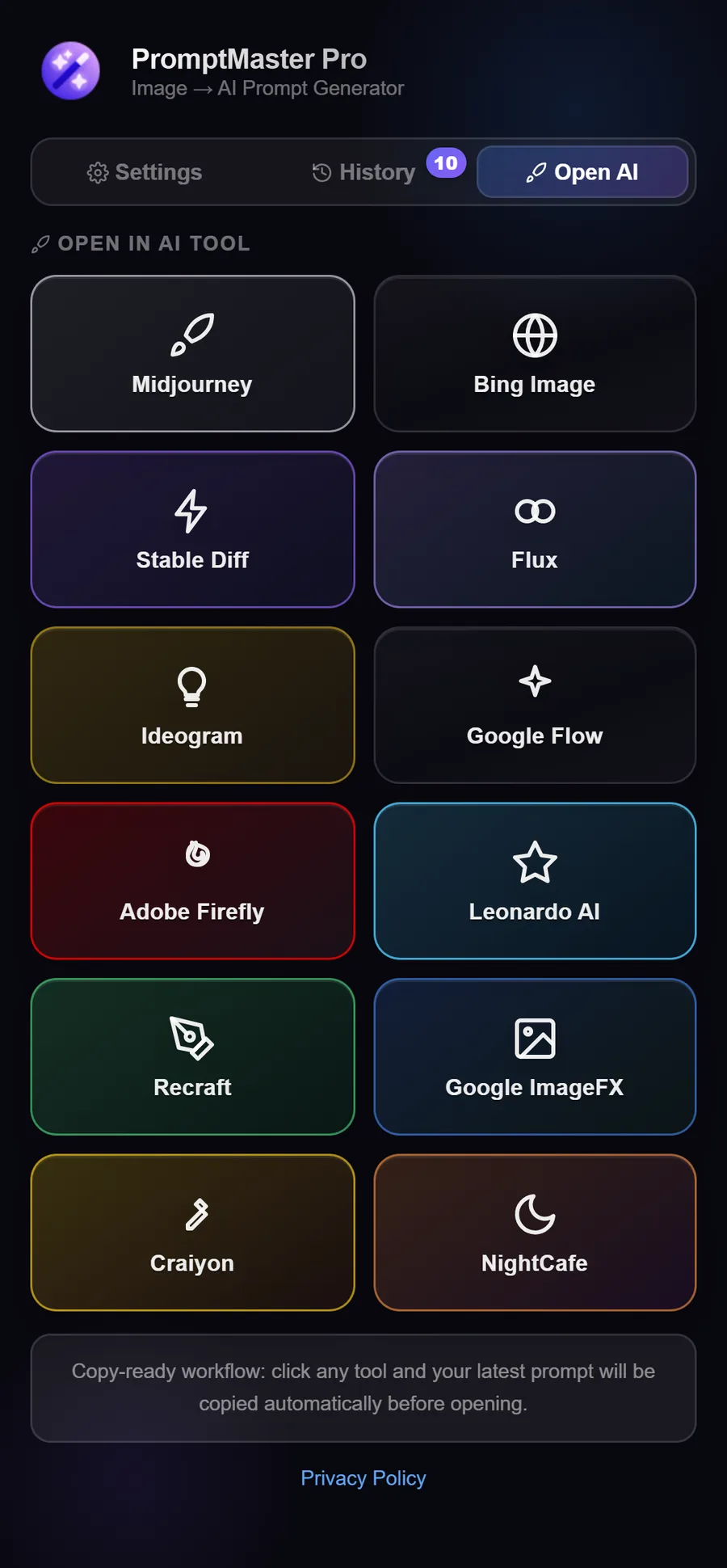
Two more tabs: History (past prompts, with CSV export on Silver/Golden) and Open AI (one-click links to open your latest prompt in Midjourney, Recraft, Stable Diffusion tools, and more).
Activate Pro (if you purchased a plan)
If you paid by card via Lemon Squeezy, your plan activates automatically. Just check your email for confirmation. If you paid via bKash or Nagad on our checkout page, wait for activation (usually within 2-4 hours).
Either way, open the popup's Activate Your Plan card, enter the same email you used at checkout, and click Activate.
Generate a prompt from any image
Visit any website with images (e.g. stock sites, Pinterest, Google Images).
- Hover over an image and click the Magic Hover Button to generate a prompt.
- Or right-click the image → choose the PromptMaster action, if the button does not appear.
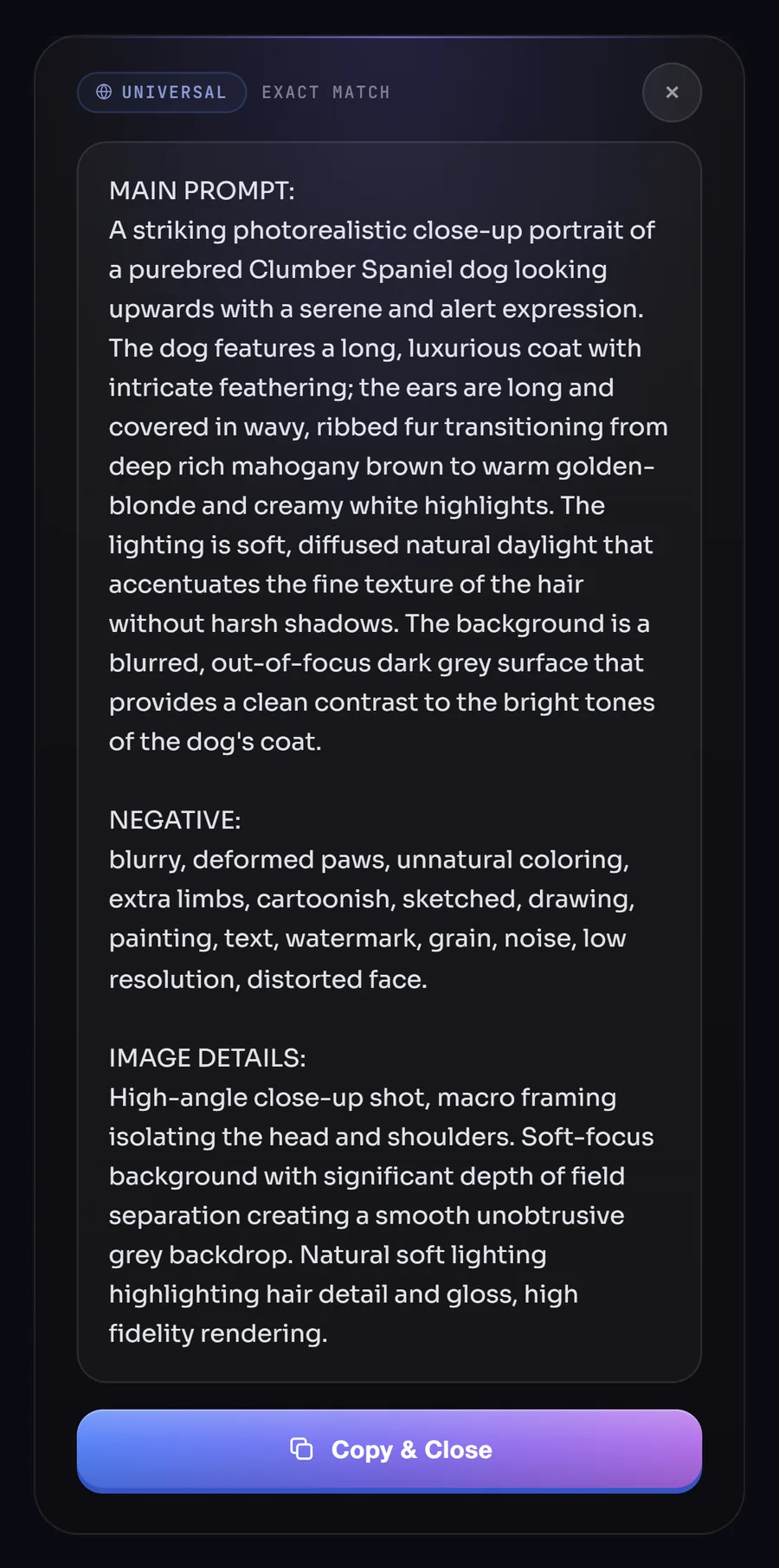
The extension sends the image to the AI backend (ours or your key, depending on plan) and returns a detailed prompt, ready to paste into Midjourney, ChatGPT Images, Stable Diffusion, or Flux. Copy (or Ctrl+C while the result is open) gives you just the main prompt; Universal, Stable Diffusion and Craiyon results also show a NEGATIVE list of things to leave out.
Copy, paste, and refine
Copy the generated text from the extension UI, paste it into your image tool, and adjust wording if you like. Your history is stored locally in the extension so you can revisit past prompts (depending on plan).
You're Ready to Start
Install the extension and generate your first AI prompt in seconds. Free plan needs no signup.
Add to Chrome, It's Free