Change the colors of any SVG
Add one SVG or up to 10 at once and see every color they use. Pick a new one for any of them, remove a solid background, then download smaller, clean files.
An SVG is a picture written as code, and every color in it is a line you can change. This tool finds those colors for you, lets you swap them with a click and trims the extra code, so the file is ready for a website, an icon set or a stock upload.
- Nothing is uploaded
- No daily limit
- No sign-up
- Up to 10 at once
Why people use this one
Every color, one click to change
Each color in the file shows with how often it is used. Click it to pick a new one or type a HEX code, and the picture changes at once. Hold a button to see the original.
Close shades count as one
AI tools often paint one black as many nearly equal shades. They are grouped, so one change recolors all of them, and nothing is left behind.
A much smaller file
Make it smaller removes extra code and rounds long numbers. In our test an AI-made SVG went from 831 KB to 11 KB, most of it hidden file info.
How it works
- Step 1
Add your SVGs
Drop in one file or up to 10, choose them, or paste SVG code. They stay on your device.
- Step 2
Change the colors
Click any color to pick a new one or type a HEX code. Or make the whole SVG one color.
- Step 3
Make it smaller and save
Pick how small, then download the new SVG or copy its code.
Questions
Short answers about SVG colors, file size and privacy.
See all questionsColors set as fill, stroke or gradient stop colors, as attributes, in style="" or in a <style> block. A shape with no color set shows black; in files without a <style> block, that black is listed and can be changed too.
Nearly equal shades, like two blacks one step apart, count as one color so a single change covers all of them. Turn Group close shades off to change each exact color on its own.
It uses SVGO, a well known open-source SVG cleaner. It removes extra code and comments and rounds long numbers. Light keeps the shape exact, Strong rounds the most, so check small details after.
Hidden information some apps, like Adobe Firefly, add to a file to show it was made with AI and how it was edited. In AI-made SVGs it can be most of the file size. Make it smaller removes it, unless you turn on Keep Content Credentials.
Yes. Removing hidden file info does not change the rules: stock sites such as Adobe Stock ask you to mark AI-made work when you upload it.
No. Everything runs in your browser. Your SVG is never sent to our server.
No, it opens SVG files only. To turn a picture into an SVG first, use our free Image to Vector tool.
Yes. Add up to 10 SVG files. The colors of all of them show in one list, so one change covers every file that has that color. Download them all as one ZIP.
Yes, when the background is one solid shape over the whole picture, as in most AI-made and traced SVGs. Choose Transparent to remove it or Color to paint it. Shapes inside the picture, like white details, stay as they are.
Yes. Up to 10 files at once, no daily limit and no account.

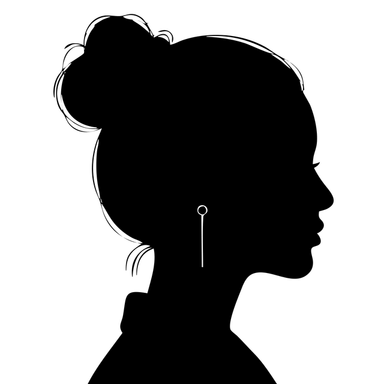




Recolor your next SVG
Every color, one click to change, the background gone if you like, and a smaller file. Free.