You scroll past a photo, a poster or a still from a film, and you want that same look in your own AI image. So you open Midjourney, type a few words, and what comes back looks nothing like it.
Most of the time, the prompt is what's missing. On top of that, Midjourney, Stable Diffusion and Flux each read prompts in their own way, so a prompt that works well in one can fall flat in another.
Below you'll see what each one wants, a real photo turned into three prompts, and the one-click way PromptMaster Pro handles all of it for you.
Three generators, three ways of reading a prompt
Midjourney likes a clear description of the scene with a few settings added at the end. The most useful one is --ar, which sets the shape of the image.
Stable Diffusion, in tools like AUTOMATIC1111 and ComfyUI, reads short keywords separated by commas. You can make any keyword count for more, and there's a separate box for things you don't want to see.
Flux, made by Black Forest Labs, wants normal sentences. Tell it what's in the frame and how things relate to each other. It has no negative prompt box at all.
Same picture, three formats. The good news is you don't need to learn any of them. PromptMaster Pro writes all three for you.
What a good image prompt captures
Whatever the format, a prompt made from a picture covers the same six things: the subject and what it's doing, where it is, the style or medium (photo, 3D render, watercolour), the lighting and where it comes from, the colours, and the camera, meaning how close it is, from what angle, and how much of the background is in focus.
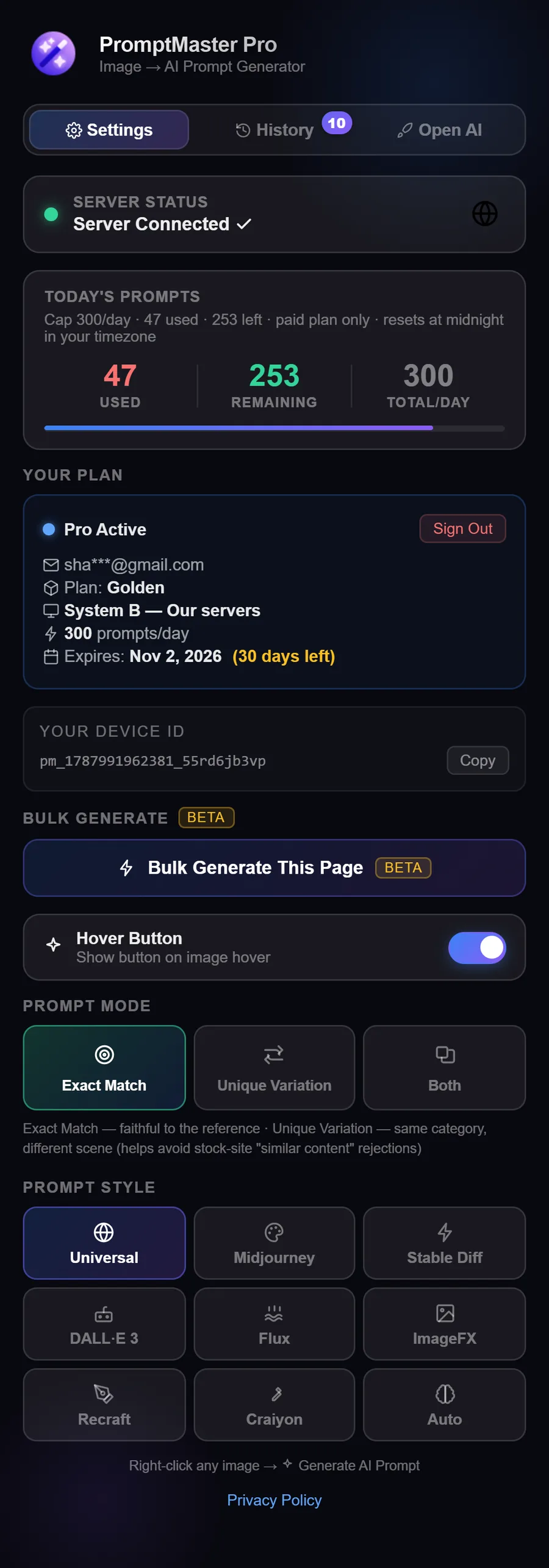
You don't have to write any of that down. PromptMaster Pro picks up all six from your image and puts them into the format of the model you choose.
Midjourney: describe the scene, then add the settings
Start with the most important thing in the picture and keep the description focused. The settings, which Midjourney calls parameters, go at the very end.
The one that matters most is --ar, the aspect ratio. It's written as width:height in whole numbers: --ar 9:16 for a tall phone photo, --ar 16:9 for a wide banner. Leave it out and Midjourney gives you a square. Getting the shape right does a lot for how close the result feels, which is why PromptMaster Pro reads the size of your image and adds the matching --ar on its own.
Midjourney also has its own Describe tool. You upload a picture and it suggests a few prompts. They're handy for seeing how Midjourney reads an image, but they tend to be short and general. PromptMaster Pro gives you the full, detailed version in one click.
A typical Midjourney prompt is built like this:
[subject doing something], [setting], [style or medium], [lighting], [colour palette], [camera angle and lens] --ar 2:3
PromptMaster Pro also leaves out the --v setting, so Midjourney always runs on whichever model you're using right now.
Stable Diffusion: keywords, weights and a negative prompt
A Stable Diffusion prompt looks more like a list than a sentence. To make one keyword count for more, wrap it in brackets with a number, like (red silk dress:1.3). Anything between 1.1 and 1.4 is safe. Go much higher and the image can start falling apart.
The second box, the negative prompt, is where you list what you don't want: blurry, extra fingers, watermark, text. It's often the quickest way to clean up a result. PromptMaster Pro fills in both the weights and the negative prompt for you.
One more trick: if the picture was made in AUTOMATIC1111 in the first place, the original prompt may still be saved inside the file. The PNG Info tab can read it back, as long as the image hasn't been re-saved or compressed by a website.
(main subject:1.3), setting, (style:1.2), lighting, colour palette, camera angle, sharp focus, high detail
Negative: blurry, low quality, watermark, text, distorted hands
Flux: write it the way you'd describe a photo to a friend
Black Forest Labs, the team behind Flux, recommends plain sentences that explain how things relate: who's holding what, where the light comes from, what's behind the subject. Their prompting guide suggests a simple order to start with: subject, location, style, camera settings, lighting, colours, then any extra details.
A few things make a real difference with Flux. Only describe what you could actually point to in the picture, because words like "beautiful" or "masterpiece" add nothing. Mention the medium and the camera look early. And since there's no negative prompt, say what you want instead of what you don't: "a clean, empty background" works much better than "no clutter".
PromptMaster Pro's Flux style writes in exactly this kind of full, descriptive sentence and fills in the details from your image, so Flux has far less to guess.
One photo, three prompts
Here's a real photo turned into a prompt for each model.
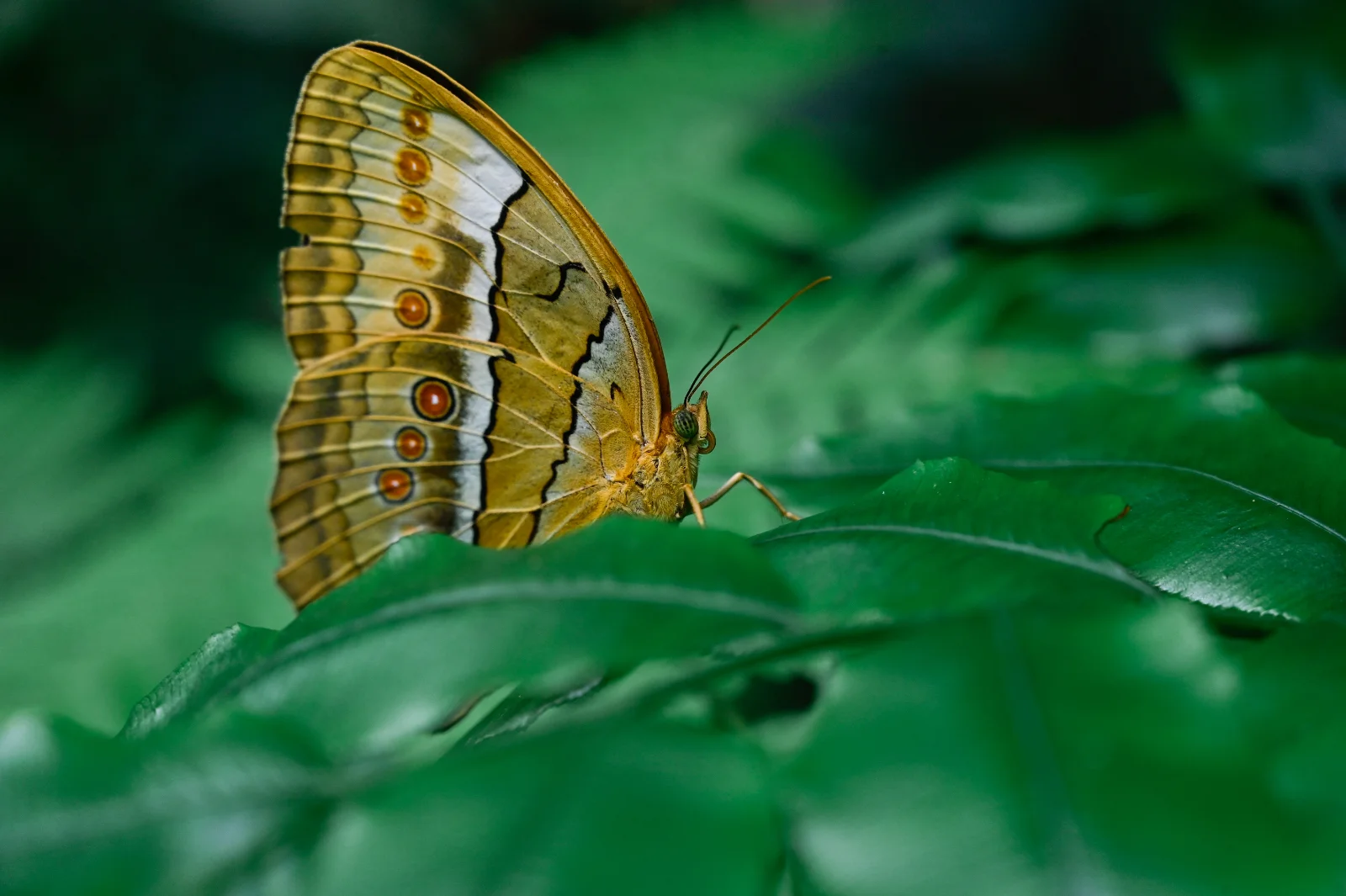
Photo: Tien-seven on Pixabay.
Midjourney
A photorealistic close-up of a golden butterfly resting on vibrant green foliage. The butterfly sits left of center, seen in side profile and facing right, its wings folded upright to show the underside. The wings display intricate patterns of ochre, muted gold, creamy white, and dark brown or black lines. Along the wing margins, a row of circular eyespots with dark red-brown centers is ringed in orange. The butterfly's body is a muted gold color, with a green compound eye and slender, dark antennae. The background consists of softly blurred, deep emerald green leaves, creating a shallow depth of field. Natural, diffused light illuminates the scene, highlighting the textures of the wings and leaves. The overall mood is serene and natural. --ar 3:2
The photo is 1280×852 pixels, so the prompt ends with --ar 3:2, the same shape. That part is added automatically.
Stable Diffusion
(photorealistic, macro photography:1.3), (a single golden butterfly, wings folded, side view:1.2), intricate wing patterns featuring golden-yellow, creamy white, and black bands, and rows of circular, orange-ringed eyespots with dark red centers, resting on deep green leaves, (soft, natural, diffused lighting:1.1), deep green, out-of-focus foliage in the background, sharp focus on the butterfly and immediate surrounding leaves, rich green, golden yellow, creamy white, and black color palette, serene and detailed mood.
Negative: blurry, deformed, ugly, low quality, text, watermark, signature, human, person, multiple butterflies, open wings
Flux
A detailed, photorealistic close-up macro shot of a golden butterfly resting on vibrant, glossy green leaves. The butterfly's wings are folded together above its back, showing the patterned underside in earthy yellow, creamy white, and deep black lines. A cream-white band runs across the wing, and a row of circular eyespots sits near the outer edge, each with a ring of fiery orange around a darker, maroon-red center. Delicate, thin black lines delineate the wing segments, creating a mosaic-like texture. The butterfly's body is a fuzzy, earthy yellow-brown. Its thin, dark antennae extend forward, and its small compound eye is visible, appearing emerald green. The butterfly is positioned left of center, seen in side profile with its head facing right. The surrounding foliage is a deep, rich green, with some leaves in sharp focus in the foreground and others softly blurred in the background. The lighting is natural and diffused, creating soft highlights on the glossy leaf surfaces and emphasizing the textures of the butterfly's wings. The mood is tranquil and naturalistic.
Look at how the butterfly, the light and the colours stay the same in all three while the format changes. Paste each one into its own generator and you're done.
The quick way: PromptMaster Pro
Doing this by hand for every picture gets old fast. PromptMaster Pro is a browser extension for Chrome, Edge and Firefox, and it turns the whole thing into a few seconds of work:
- Hover over any image on a website and click the Magic Hover Button.
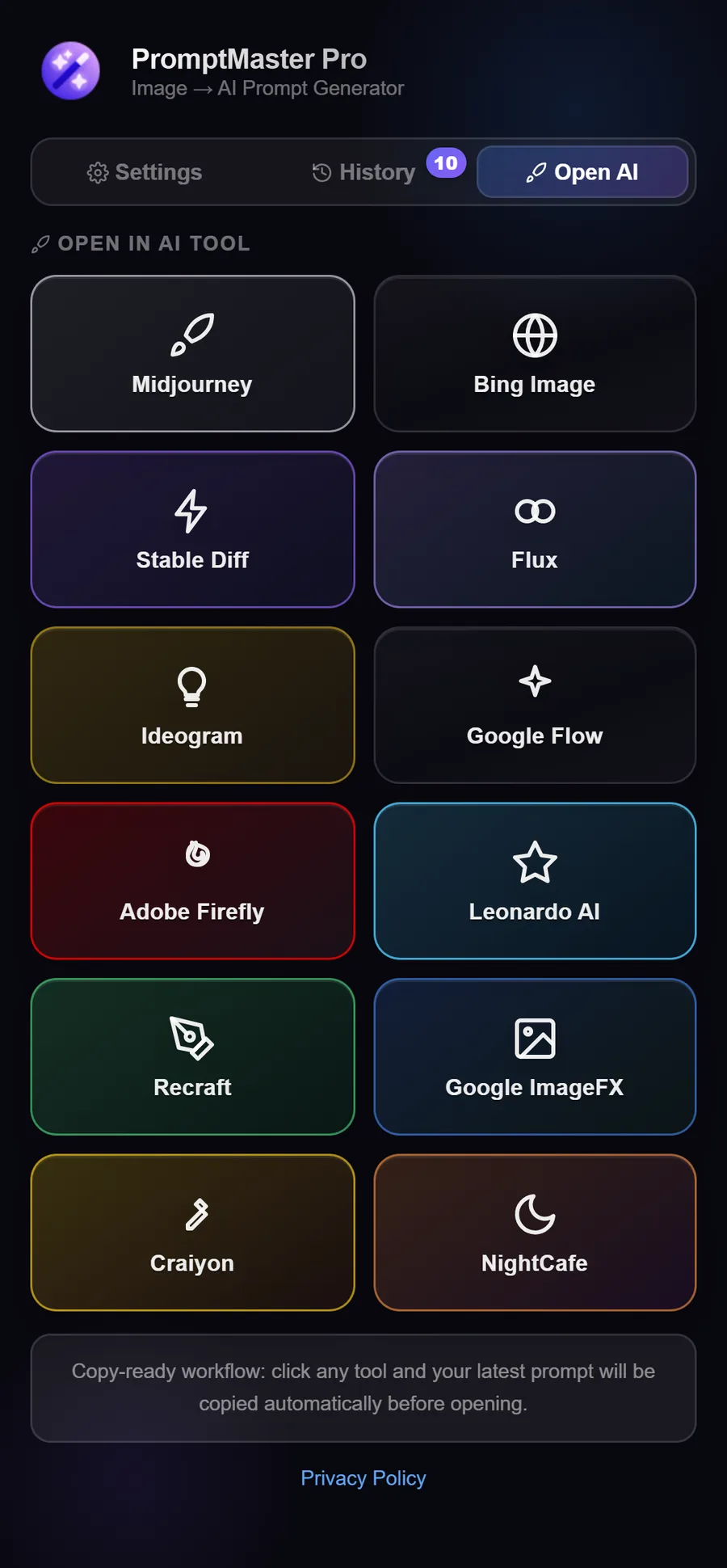
- Choose the style: Midjourney, Stable Diffusion, Flux, or one of six others, including DALL-E 3, Recraft and Google ImageFX.
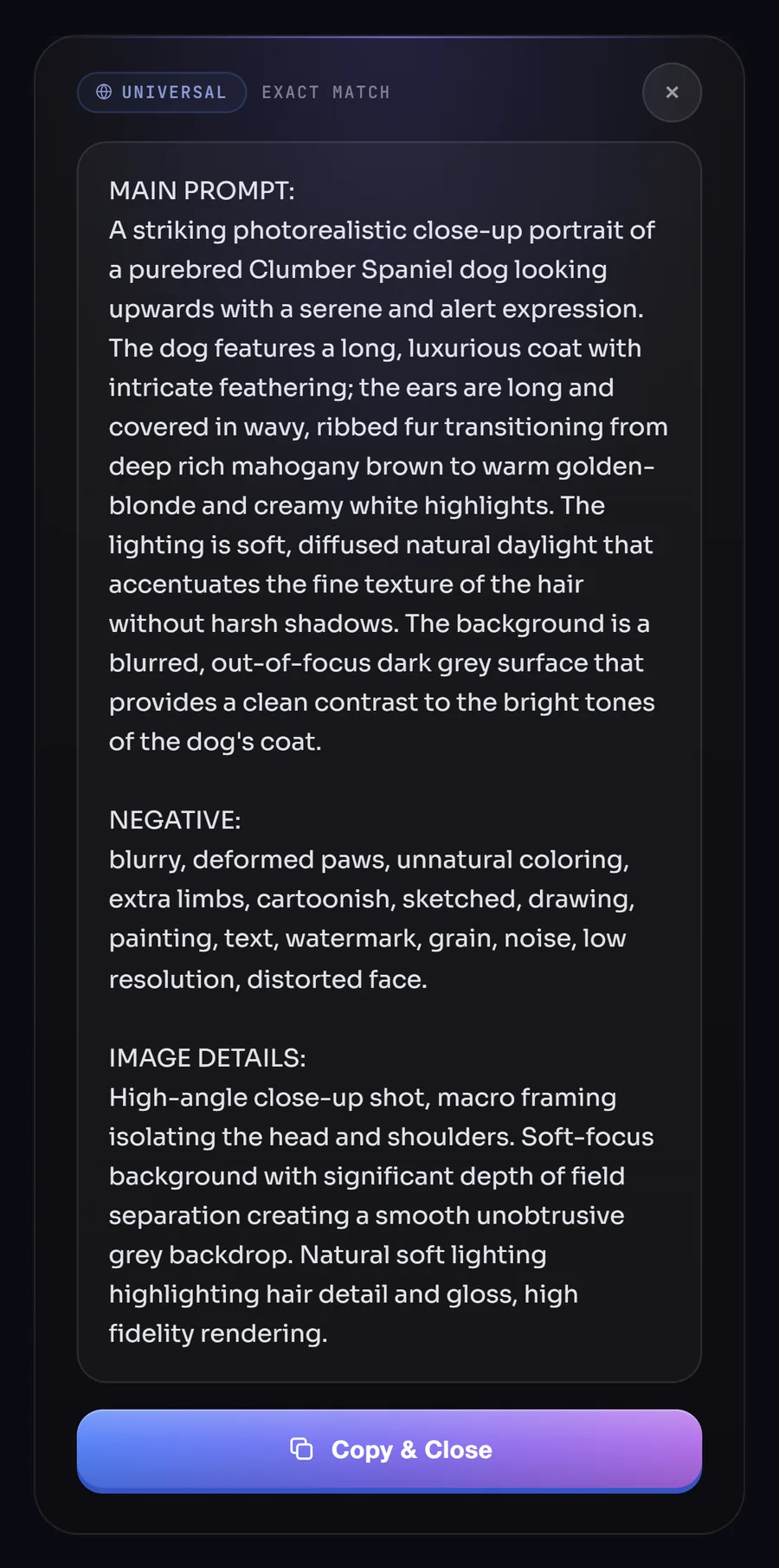
- Copy the main prompt, paste it into your image generator, and generate.
If a site hides an image behind another layer and the button doesn't show up, right-click the picture and pick PromptMaster Pro instead. The Free plan gives you 50 prompts (up to 10 a day), no card needed. Have a look at everything it does or follow the install guide.
Questions people ask
Can I use someone else's image this way?
A prompt describes a look. It doesn't copy the picture. Still, stick to images you have the right to use as a reference, and don't try to recreate someone's artwork, a logo or a real person's face without permission. Stock sites also reject images that look too close to existing work, which we cover in How to Avoid Stock Photo Rejection with AI Prompts.
Will the new image look like my reference?
It follows the look of it: the same kind of subject, style, lighting and colours, because the prompt describes all of that in detail, and in Midjourney the shape matches too. AI generators always make a fresh image rather than a pixel-for-pixel copy, so what you get is new and yours.
Which generator is best for recreating a photo?
For realistic photos, Flux and Midjourney usually stick closely to the description. Stable Diffusion gives you the most control, with weights, negative prompts and extensions. With PromptMaster Pro you can switch styles and try all three in seconds.
Do I need to learn prompt syntax?
No. PromptMaster Pro writes the right format for whichever style you pick. You generate the prompt, paste it, and make your image.
Want more Midjourney ideas? Read The Ultimate Guide to Midjourney Prompts in 2026.